
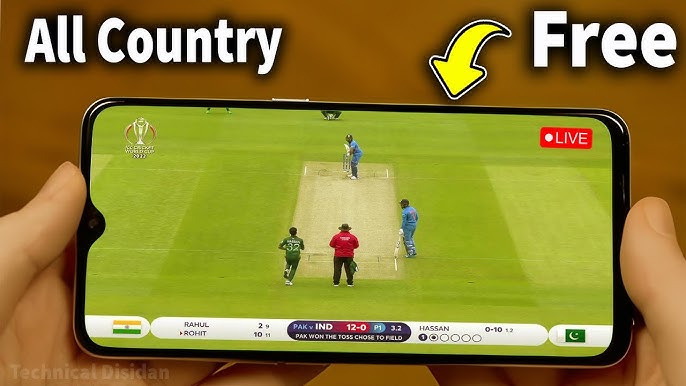
Phones now do the work that used to belong to TVs, set-top boxes, and laptops. One night the screen has to handle an intense chase with live updates coming in every few seconds. The next night it’s expected to deliver an HD movie with clean audio, stable playback, and enough battery to finish the final scene. Many viewers also keep criket live apps open as a second screen for ball-by-ball tracking while streaming films on the same device, which puts extra pressure on network stability, storage, and performance.
The good news is that most viewing problems come from fixable settings and habits, not from the phone being “too old.” The steps below focus on practical changes that improve clarity, reduce stutters, lower data waste, and prevent the most common interruptions during sports and movie streaming.
Get the basics right: screen, brightness, and audio settings
Auto-brightness can fluctuate while streaming, which makes the screen feel inconsistent and can drain the battery faster. Setting brightness manually usually keeps the picture more stable. Turn it up if sunlight washes out the display, and dial it down in a dim room to ease eye fatigue and extend battery life. Night filters help late viewing, but they can distort colors. For films, a lighter filter – or none – keeps dark scenes and skin tones more accurate. High refresh rates feel smooth but drain battery. Switching to a standard rate helps for long sessions. If the video keeps shifting quality, lock a stable resolution like 720p. With Bluetooth audio, fix lip-sync by using audio delay/sync settings, and disable heavy bass “enhancements” that muddy voices.
Network tuning for stable live streams and smoother HD playback
For Wi-Fi streaming, the right band comes down to distance and obstacles. 5 GHz usually works best when the phone is near the router, since it’s often less crowded and can carry video more smoothly. If the signal has to travel farther – through multiple rooms, floors, or thick walls – 2.4 GHz can hold the connection more consistently, even if the maximum speed is lower. With streaming, steady delivery matters more than a flashy speed test.
Data-saving modes without wrecking video
Phones often include data saver and battery saver features that restrict background activity. These can help when watching on mobile data, but they can also interfere with streaming quality by limiting app behavior. A better strategy is to restrict data usage for non-essential apps instead of throttling everything.
If the phone supports “Wi-Fi assist” or “smart network switch,” it may jump to mobile data when Wi-Fi weakens. That can create sudden quality changes. Disabling that feature during streaming can reduce interruptions.
Stop background bandwidth grabs
Buffering is often caused by competition, not the stream itself. Cloud photo uploads, OS updates, app downloads, and file syncing can suddenly pull bandwidth. Before a big match or movie, it helps to pause large uploads, turn off auto-updates, and postpone backups until after viewing.
If the home network is busy, even a strong phone setup will struggle. In that situation, reducing the stream resolution slightly can keep playback stable when others are using the internet.
Storage and performance prep before a big match or movie night
Streaming apps rely on cache. Phones also need free space for system functions. When storage is almost full, apps can become sluggish, caching fails, and playback can stutter. As a practical baseline, leaving several gigabytes free helps most devices stay responsive.
If downloads are used for offline movies, avoid filling storage to the edge. A phone that’s nearly full tends to heat up and slow down faster during long playback.
App setup that reduces interruptions and keeps sessions focused
Notifications can ruin key moments and spoil matches. Setting “Do Not Disturb” during viewing is one of the easiest upgrades. It can be customized to allow calls from favorites while silencing everything else.
For live cricket, consider limiting sports notifications to wickets and innings breaks rather than constant alerts. For movies, silencing notifications entirely prevents pop-ups that interrupt dialogue or block subtitles.
Many phones support picture-in-picture for streaming video. This is useful for keeping a match visible while checking messages. Split-screen can also work for sports plus score tracking, but it increases load and can trigger heat. If the phone starts lagging, returning to single-app viewing is often the fix.
For HD movies on the go, downloads are the most reliable path. Choose download quality based on storage. If the phone has limited space, standard HD is often enough for a small screen.
A ready-to-watch checklist
- Set the brightness manually for the room, and lower the refresh rate if the battery drains too fast.
- Use 5 GHz Wi-Fi near the router. Use 2.4 GHz when distance and walls cause drops.
- Pause large uploads, cloud syncing, and app updates during viewing.
- Leave free storage space so apps can cache properly and the system stays responsive.
- Enable Do Not Disturb to block spoilers and interruptions.
- If the phone heats up, reduce brightness and close extra apps to prevent throttling.
A Phone That’s Ready When the Match Gets Tight
A great viewing experience rarely depends on owning the newest device. It’s built through small choices: stable Wi-Fi, sensible resolution settings, enough storage headroom, and fewer background distractions. With these adjustments, a phone can handle live cricket and HD movies more reliably, with fewer stalls, clearer audio, and less stress during the moments that matter most.